 NateCue
Claude Beginner’s Guide: Chat, Projects, Cowork, and Claude Code Explained
Claude is not just one chatbot - it is an AI ecosystem with distinct modes of working, ranging from basic conversation to an agent that can operate directly on your computer. This guide explains everything from scratch: what each mode does, which model to choose for which situation, and how to set up Skills and context files so Claude understands how you work.
If you are new to Claude and confused about the difference between Claude.ai, Claude Code, Projects, Skills, and CLAUDE.md - this guide is for you. We will move in logical order from the simplest to the most advanced, with one goal: you understand enough to start today.
What Claude Is and How Many Ways You Can Access It
Claude is an AI built by Anthropic - a company co-founded by former OpenAI engineers. Unlike ChatGPT, Claude was built around the “Constitutional AI” principle, meaning it is trained to respond according to explicit ethical guidelines with an emphasis on safety and honesty.
There are three main ways to access Claude, each serving different needs:
- Claude.ai (Chat): Web interface, works in your browser - similar to ChatGPT
- Claude Projects: A feature within Claude.ai that creates persistent workspaces with long-term memory
- Claude Code: A command-line application (CLI) that turns Claude into an AI agent that can work directly on your computer
Understanding this distinction is the first and most important step - using the wrong tool for the job will lead to unnecessary frustration.
Mode 1: Chat on Claude.ai
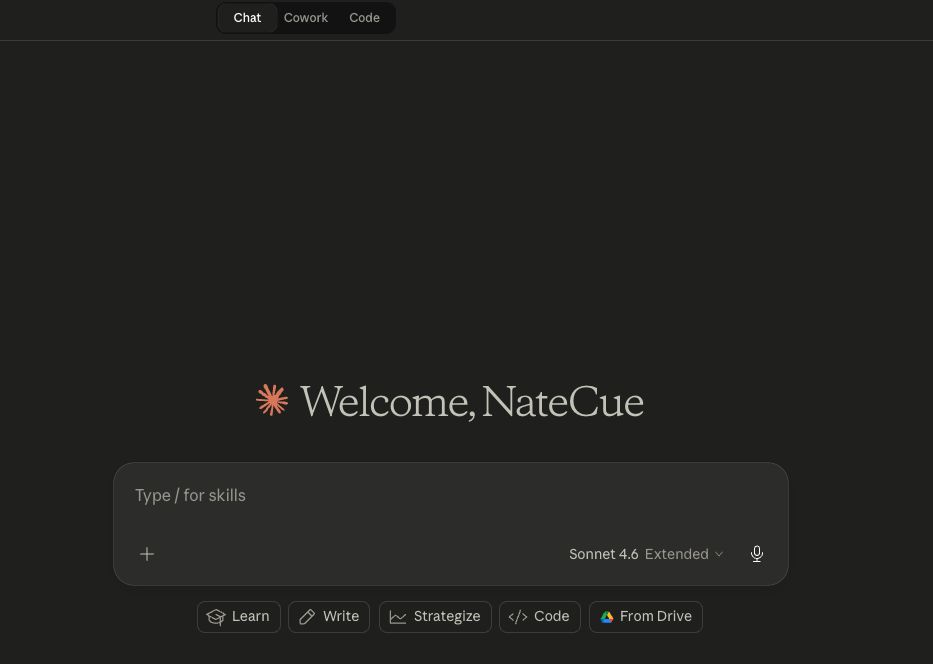
This is the simplest way to start. Go to claude.ai, create an account (there is a free tier), and start typing.
Claude.ai chat is best when you need to:
- Get explanations, research information, or summarize documents
- Rewrite, edit, or translate text
- Brainstorm ideas or analyze a problem
- Ask one-off questions without needing AI to remember previous context
- Debug a single code snippet or review a piece of logic
How it works: You type a message (prompt), Claude responds in the same conversation thread. Each chat session is its own isolated memory - opening a new tab means Claude remembers nothing from the previous session. This is stateless behavior by default.
Key limitations: The free tier limits daily messages. The Pro plan ($20/month) gives more messages, priority access to stronger models, and unlocks the Projects feature.
Tips for more effective chat:
- Provide specific context at the start of your prompt: “I am a marketer at a B2B SaaS startup, write an email follow-up for this lead…”
- Use the Artifacts feature (the panel that appears on the right) to have Claude render code, tables, or HTML directly
- Attach files (PDF, Word, images) for Claude to read and analyze
Mode 1 Advanced: Projects - Long-Term Memory for Recurring Work
Projects lets you create a dedicated workspace within Claude.ai where Claude retains context across all conversations in that Project.
Think of Projects as onboarding a new employee. You explain the company, the working style, and the process once. After that, any conversation within the Project starts with Claude already knowing the background.
How to create a Project:
- Go to claude.ai, select “Projects” in the left sidebar
- Click ”+ New Project”, give it a name
- Go to “Project Instructions” - paste context, rules, or background information here
- Upload supporting documents if needed (brand guidelines, codebase snippets, process documentation)
What are Project Instructions? This is text that gets included at the top of every conversation in the Project - like a personal system prompt. You might write:
You are a writing assistant for my personal brand. Tone: professional but approachable.
Use "I" and "you" as pronouns. No hashtags. Always write in English.
Brand context: NateCue - marketer specializing in Tech, Pharmacy, and Marketing.
When to use Projects:
- You have a long-term project needing continuous context (content writing, coding, research)
- You need Claude to maintain a consistent tone or follow a specific process
- You are working with a large document set that Claude needs to reference repeatedly
Mode 2: Claude Cowork - Task-Focused with Project Integration
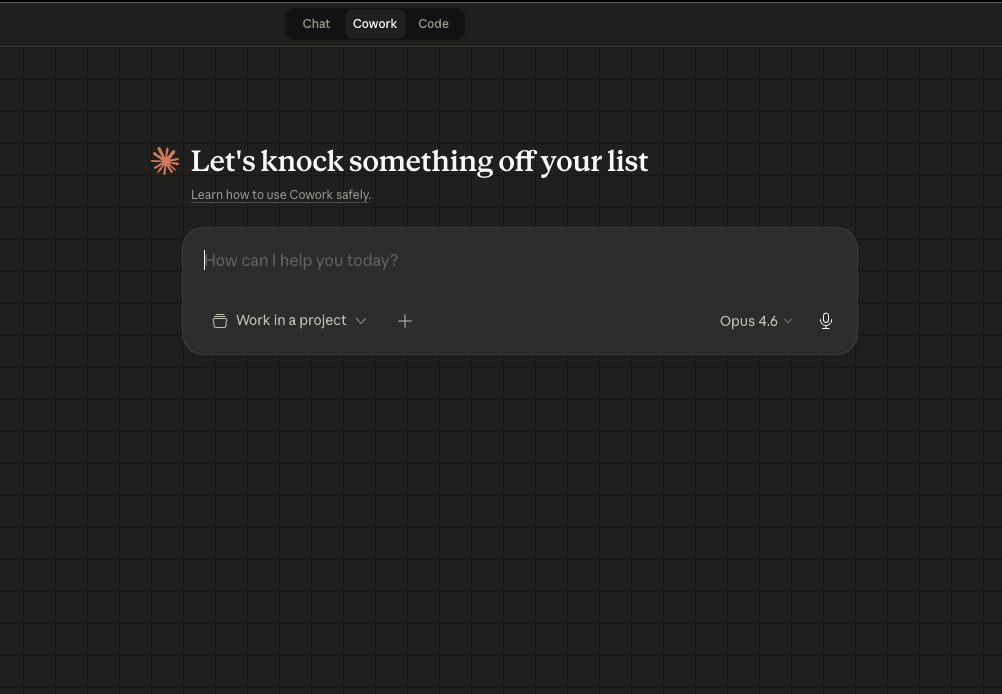
Cowork sits between Chat and Claude Code - designed for when you need Claude to complete a specific task, not just answer a question. The tagline is “Let’s knock something off your list” - clearly oriented toward task completion rather than conversation.
The first thing you will notice: Cowork defaults to Opus 4.6 - the strongest Claude model - rather than Sonnet like Chat does. This reflects Cowork’s intent: it is for work that requires deep reasoning, not quick Q&A.
How Cowork differs from Chat:
- Project integration built in: The input area has a “Work in a project” button - Claude pulls context from your chosen Project immediately, no need to re-paste background information
- Stronger model by default: Opus 4.6 handles complex, multi-step tasks and longer reasoning chains better
- Action-oriented interface: The UI encourages you to give a clear task, not ask an open question
When to use Cowork:
- You need Claude to complete something end-to-end - for example: “Analyze this brief and write me three headline options with reasoning for each”
- You are working inside a Project with existing context and want Claude to apply it to a new task
- The task requires Opus-level reasoning - complex comparisons, detailed planning, technical documentation
Quick comparison of all three modes:
| Chat | Cowork | Code | |
|---|---|---|---|
| Interface | Web browser | Web browser | Terminal / IDE |
| Default model | Sonnet | Opus | Sonnet/Opus |
| Memory | Within session | Projects | CLAUDE.md + context files |
| Can take action | No | Limited | Full |
| Best for | Quick Q&A | Complex tasks | File and code work |
Mode 3: Claude Code - AI Agent Running Directly on Your Computer
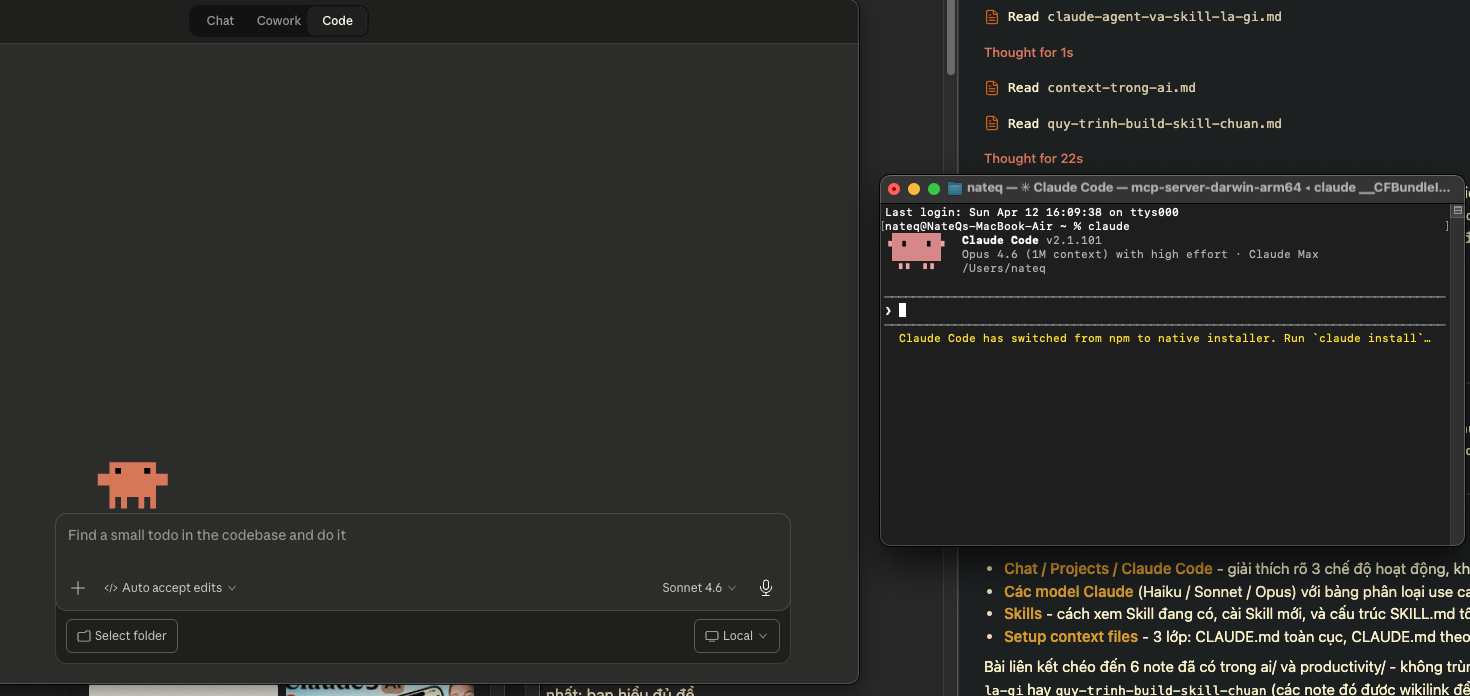
This is the most powerful and distinctive mode. Claude Code is a CLI application that lets Claude not just respond, but take real actions on your file system.
With Claude Code, Claude can:
- Read and write files - create, edit, and delete files directly
- Run terminal commands - git, npm, bash, python scripts
- Search within codebases - grep and glob to find exactly the right files
- Connect to external tools via MCP (Notion, GitHub, databases)
- Spawn subagents to handle multiple tasks in parallel
This is why Claude Code is called agentic AI - it has genuine autonomy to act, not just converse. See agentic-ai-era for more on what this shift means.
Installing Claude Code:
# Install Node.js first if you do not have it, then:
npm install -g @anthropic-ai/claude-code

# Run Claude Code inside your project directory
cd /path/to/your/project
claude
When to use Claude Code:
- Working with a codebase (writing, refactoring, debugging an entire project)
- Automating repetitive workflows (batch file creation, processing)
- Working with an Obsidian vault (through Claudian integration) to manage a knowledge base
- When you want Claude to actually do things rather than just say things
Claude’s Models and When to Use Each
Claude has several model versions, differentiated by speed, intelligence, and cost:
Claude Haiku - Fast, Lightweight, Economical
Haiku is the smallest and fastest model. Responses are near-instant, token costs are lowest.
Good for: Simple text summarization, bulk data classification, short Q&A, repetitive tasks that do not require deep reasoning, simple chatbot integration in products.
Not good for: Complex analysis, long-form writing with depth, code that requires understanding the full project context.
Claude Sonnet - Balanced, Works for Most Things
Sonnet is the sweet spot - smart enough for most tasks, fast enough for responsive use, priced reasonably. This is the most-used default model.
Good for: Content writing, copywriting, marketing analysis, general coding and debugging, research and explanation, the majority of daily workflows.
Claude 3.7 Sonnet adds Extended Thinking - the model “thinks” longer before responding. Activate this for complex multi-step reasoning problems.
Claude Opus - Most Intelligent, Slowest
Opus is the most capable model, for tasks requiring maximum accuracy and sophisticated reasoning.
Good for: Deep strategic analysis, complex research, technical documentation requiring precision, tasks where quality matters more than speed.
Not good for: Fast-response workflows, batch processing at scale. Opus is noticeably slower and more token-expensive than Sonnet.
Simple model selection rule: Start with Sonnet for everything. Need faster or cheaper responses - switch to Haiku. Sonnet gives insufficient quality after a few tries - switch to Opus.
How to Use Skills and Projects in Claude Code
Skills are a capability unique to Claude Code - they do not exist in the standard Claude.ai chat interface. For a full conceptual explanation, see claude-agent-and-skills. Here is the practical quick-start guide.
How Skills Work
Each Skill is a SKILL.md file containing complete instructions for Claude to follow a specific process. Instead of re-writing the same long prompt every time, you package the process once and trigger it with a slash command:
/knowledge What is React
/commit
/review-pr 123
Viewing Available Skills
While in a Claude Code session, type / to see the Skills list. Read each Skill’s description to understand what it does and when it is appropriate to use.
Installing a New Skill
Skills live at ~/.claude/skills/{skill-name}/SKILL.md. To install a Skill from an external source:
# Create a new skill directory
mkdir -p ~/.claude/skills/skill-name

# Copy or create a SKILL.md file inside it
# Claude Code automatically detects new Skills on next launch
Setting Up Your Own Context Files
This is the step most people skip - but it has the largest long-term payoff. Context files are what make Claude understand how you work without having to re-explain every session.
CLAUDE.md - Global Rules
The file ~/.claude/CLAUDE.md (in your home directory) is the “rule book” Claude reads automatically in every project on your machine.
This is the right place for personal preferences that do not change between projects:
# My writing rules
- Never use em dash. Use hyphen-minus (-) instead.
- Write in English when the user writes in English
- Style: concise, direct, no filler phrases
- For commit messages: always English, imperative mood
Project-Level CLAUDE.md - Project-Specific Context
Each project can have its own CLAUDE.md at the root directory. This file overrides or extends the global one, letting you define context specific to each codebase or vault.
Example for a website project:
# Project: Personal brand website
- Framework: React + Tailwind CSS 4
- Font: SVN-Poppins
- Primary color: #1585e7
- Structure: src/components/, src/pages/, src/hooks/
- Language: TypeScript
- When creating new components: always place in src/components/
Reference Context Files
These are .md files containing background information you want Claude to be able to consult. Unlike CLAUDE.md (which is always read automatically), reference context files are read when needed or when you direct Claude to them.
Setup:
- Create a
_context/or.context/folder in your project - Create
.mdfiles for different types of information:brand-guidelines.md,tech-stack.md,content-strategy.md - In CLAUDE.md, add
@file-pathreferences to auto-load them when starting the project
Principles for effective context files:
- Specific with examples: “Professional tone” is not enough. Add: “Good example: ‘Here are three reasons…’ Bad example: ‘In the complex context of…’”
- Include a NOT-TO-DO section: Claude needs to know what to avoid, not just what to do
- Update regularly: When Claude makes a recurring mistake, add the correction to the context file immediately
- Keep them focused: 200-500 lines per file is the right range. Too long and Claude’s attention gets diluted
FAQ
Can I use Claude for free, or do I need to pay?
Claude.ai has a Free tier for basic chat with a daily message limit. The Pro plan ($20/month) increases message limits, gives priority access to stronger models, and unlocks Projects. Claude Code requires a separate API key - billed per token, no free tier, but Anthropic provides $5 in credit for new signups.
Claude Code vs Claude.ai - when to use which?
Claude.ai (chat) is best for: quick questions, writing and editing, brainstorming, document review. Claude Code is best for: when you need Claude to actually work with your files or code, automate repetitive workflows, or use Skills. If you just need to “talk to AI” - use claude.ai. If you need AI to “work with you” - use Claude Code.
Can I use Claude Code without knowing how to code?
Absolutely. Claude Code is not only for developers - many Skills are designed for writers, marketers, and knowledge workers. You only need basic terminal familiarity (cd, ls) and an understanding of file paths. If you use it through Obsidian via Claudian integration, you do not even need to open a terminal - there is a chat interface directly inside your vault.
Which model should I start with?
Start with Claude Sonnet (current version as of 2026 is Claude 3.7 Sonnet) for everything. It is the best balance of quality and speed. Only switch down to Haiku when you need faster responses or lower API costs, and switch up to Opus when Sonnet’s output quality is not sufficient after a few retries.
Are Projects in Claude.ai the same as CLAUDE.md in Claude Code?
No - they work differently and serve different contexts. Projects (claude.ai) provides long-term memory for web-based conversations - context is stored on Anthropic’s servers. CLAUDE.md is a local file on your machine that Claude Code reads at the start of each session. Projects are better for standard chat workflows. CLAUDE.md is better when you need more detailed, frequently updated context tied to a specific codebase or vault.
Summary
Claude is not a single tool - it is an ecosystem with modes suited for different needs. Chat for quick questions, Projects for persistent context across sessions, Cowork for complex tasks using project context, and Claude Code for AI that genuinely works alongside you on your machine. Start at claude.ai with Sonnet, try Projects when you have a recurring project needing continuous memory, and install Claude Code when you are ready to operate at a new level. The first concrete step: create a Project on claude.ai today and write 3-5 sentences in the Instructions about who you are and how you want Claude to work with you.