
Overview
This technique lets you standardize Claude's design output starting from a single Pinterest image. Instead of describing colors, fonts, and spacing in words - you let Claude "see" the image and extract it into a structured design system, then reuse that system to produce consistent outputs across any format.
The workflow has 3 steps: find an image on Pinterest - extract the design system - generate outputs from that system.
Step 1 - Find Your Input Image on Pinterest
Find a design you like on Pinterest (social media post, landing page, editorial layout...). Here are the 2 real images used as input in this test - picking 2 images from the same brand gives Claude more context to work with:
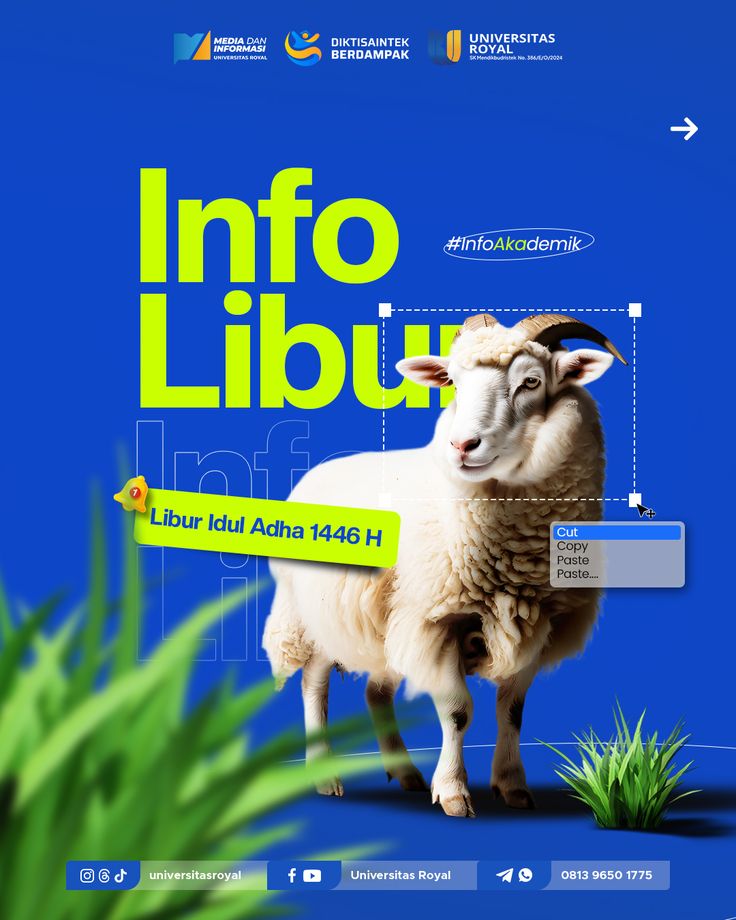
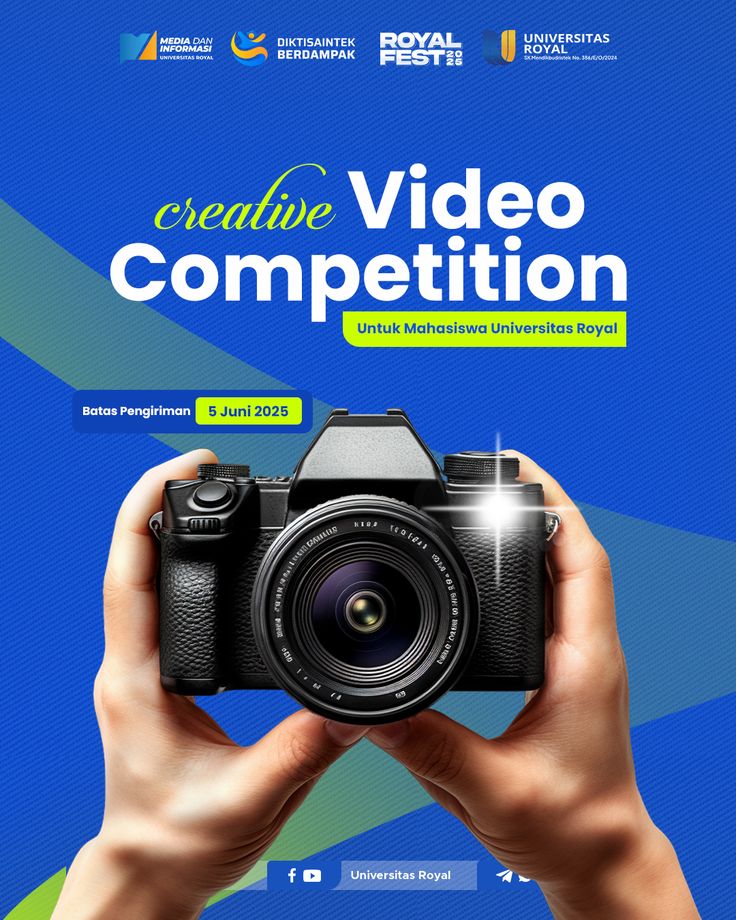
Pinterest input images - 2 posters from the Universitas Royal brand: electric blue as primary, lime green as accent, Montserrat bold as headline. This is what Claude will "read" and extract into design tokens.
Step 2 - Prompt 1: Extract the Design System
Attach the image(s) to Claude and use this prompt:
Claude will produce:
- HTML file: live-previewable in the browser with the full color palette, typography scale, and component examples
- Design .md file: a portable, structured document - color tokens, font stack, spacing scale, component rules
The .md file is the core of this technique. It captures the visual aesthetic of the original image as structured text that can be reused across unlimited sessions and projects.
Real screenshot - running Prompt 1:
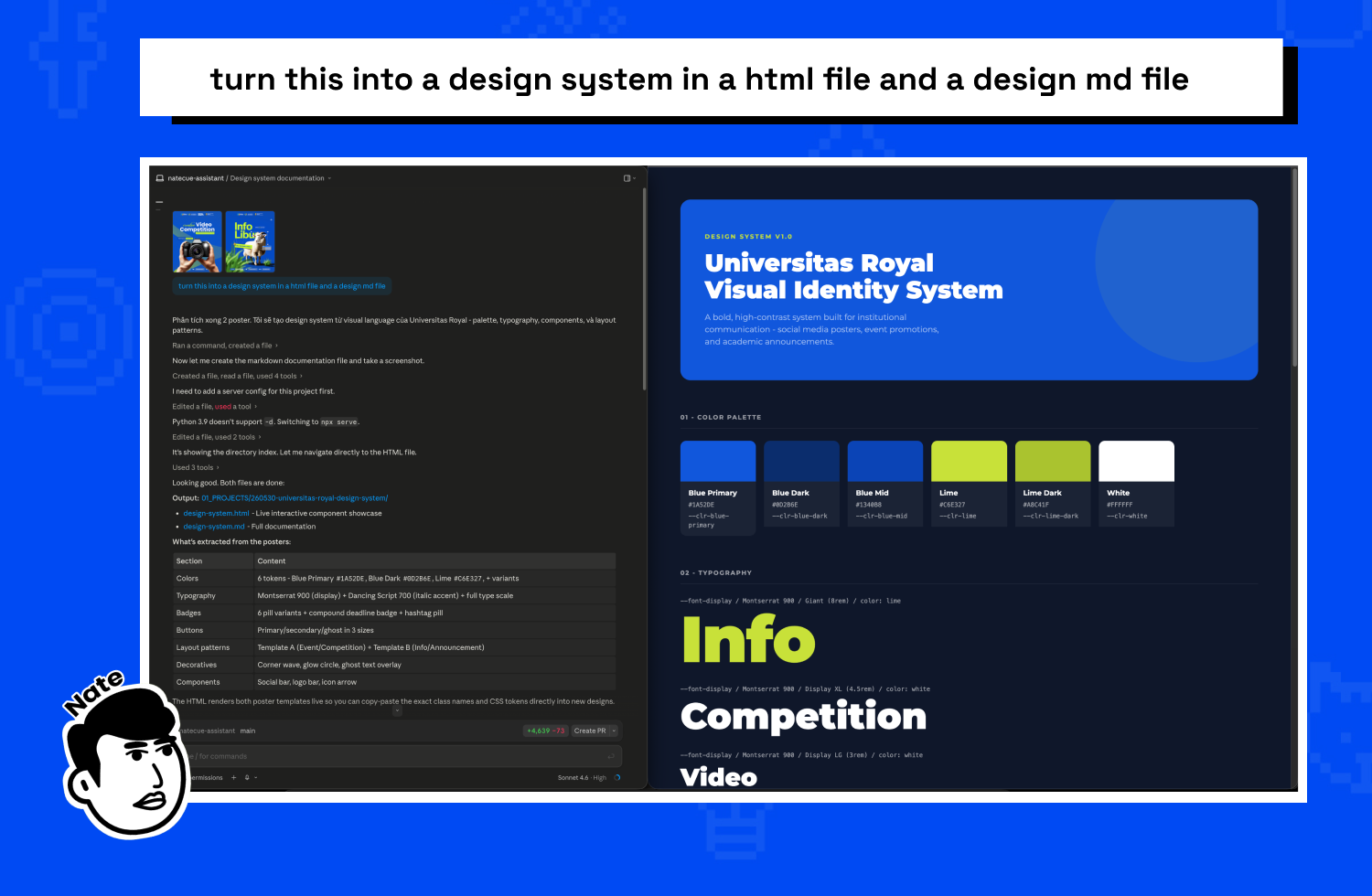
Output: Design System HTML - live preview of the file Claude generated:
Step 3 - Prompt 2: Generate Output from the Design System
Once you have the .md file, paste its content as context and use this prompt:
Swap carousel post for a publishing firm with any output you need: landing page, hero section, email template, pricing card, social media post...
Real screenshot - running Prompt 2:
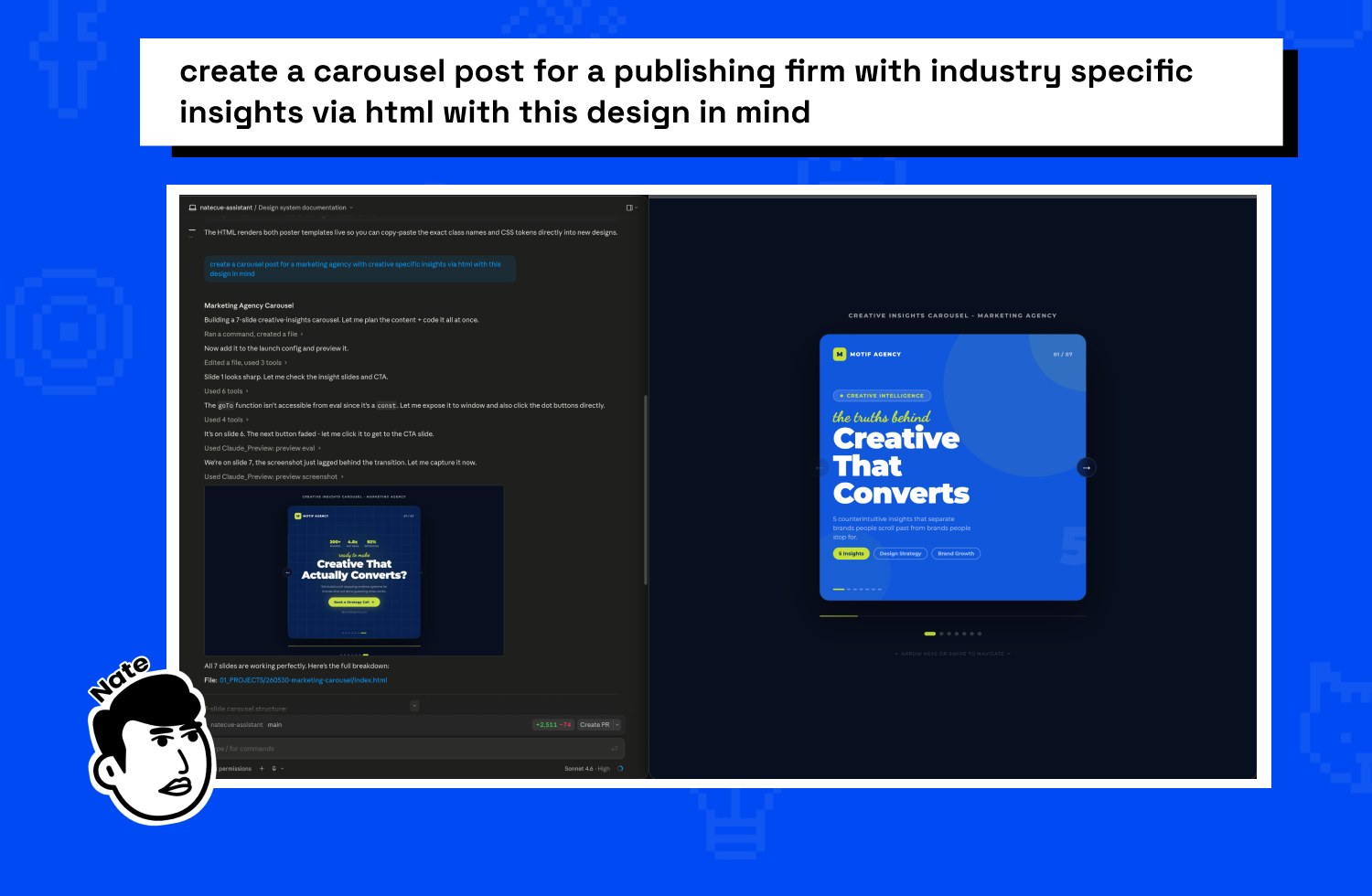
Output: Carousel HTML - live preview of the asset Claude built from the design system:
Important note: The design system extraction prompt should only be used once when setting up a new design. After that, use the
.mdfile as fixed context for all subsequent outputs. Don't re-run Prompt 1 every time - it breaks consistency and wastes context unnecessarily.
Why This Works
- Consistent: every output pulls from the same design system - no visual drift across sessions
- Reusable: the
.mdfile works across multiple projects and conversations - No verbose descriptions: instead of explaining "I want this color, that font", Claude extracts it visually
- Fast iteration: swap the Pinterest image = new design system in minutes
- Instant HTML preview: see real output during the extraction step itself, no build step needed
How to Apply It Now
- Go to Pinterest, find a design style you like (UI card, dashboard, editorial layout...)
- Screenshot or save the image (grab 2-3 images from the same brand for better context)
- Open Claude, attach the image(s), use Prompt 1 - wait for HTML + .md output
- Save both files with clear project-specific names
- For each new asset: paste the
.mdcontent as context, use Prompt 2 with your specific output description - Do not re-run Prompt 1 - always reuse the existing
.mdfile
Click the button above to watch the full demo at source.