

Every morning I check my phone before doing anything else - and what I want to see is results, not an inbox waiting to be processed. Whether website traffic went up or down today, any SEO alerts to handle, what’s worth paying attention to in the market this week - things that would take 30 minutes to manually collect, but if they’re already in a notification, take just 2 minutes to get the full picture and be ready to dive deeper when I sit down to work.
The setup I’m currently using solves exactly that problem, by combining Claude Routines running scheduled analysis tasks + Telegram MCP to push results to my phone via push notification. Wake up, open Telegram, and there’s a short summary on the lock screen - with the full report sitting in the group to read in detail when needed - fully automated, no added cost beyond my existing Claude subscription.
Claude Routine - a great feature with one missing piece
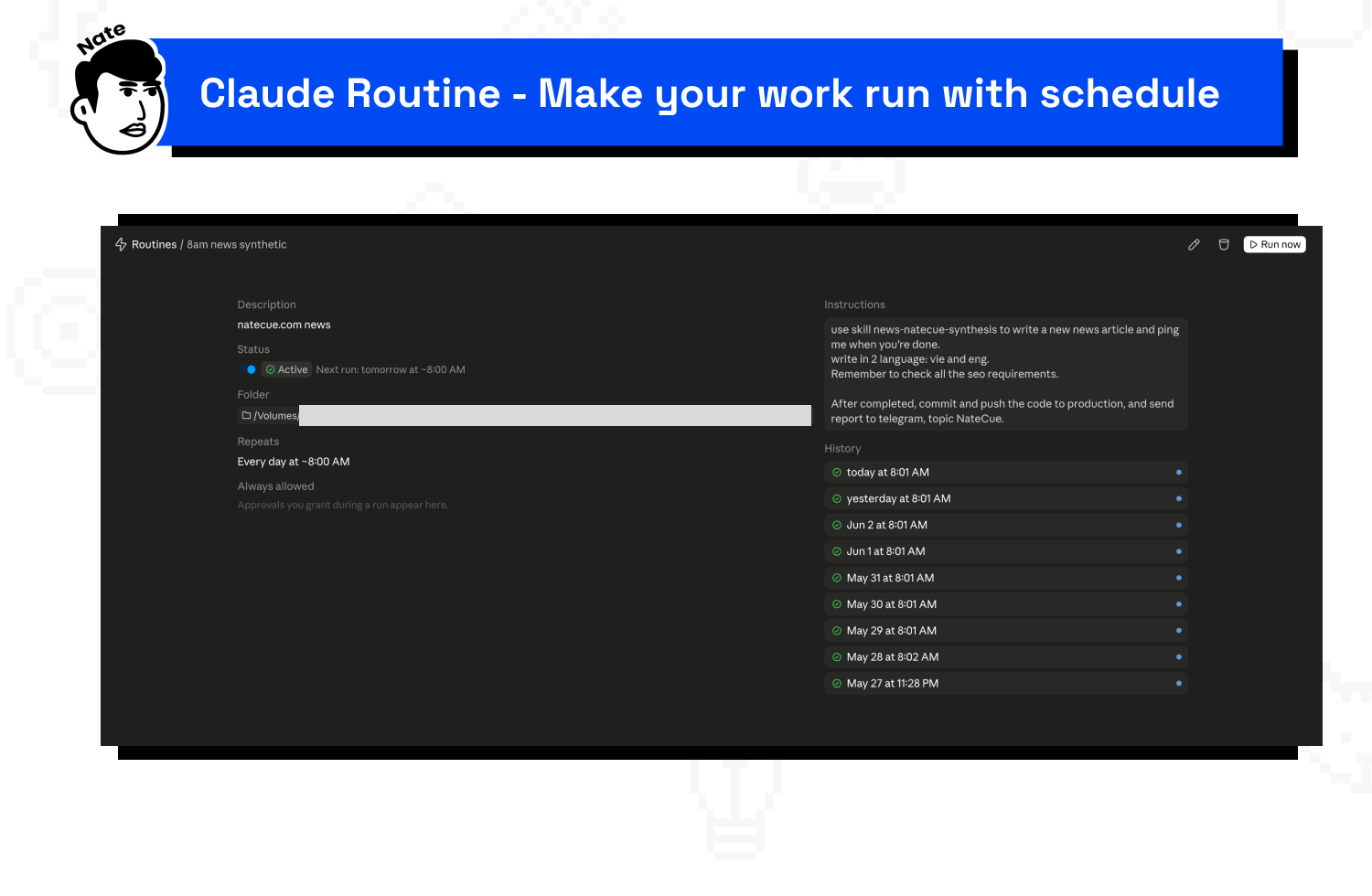
Claude Code has a /schedule feature - letting you set Claude to run a task at a specific time. For example: every Monday morning at 8am pull data, every evening at 9pm summarize notes, once a week run an SEO check. But there’s one drawback I noticed after the first use: when Claude finishes, there’s no push notification. You don’t know if the task completed, what the result was, or if any errors occurred - unless you open your laptop and check. For tasks running at night or while you’re busy, this cuts the value of automation in half. I once let a scheduled task fail for three days straight without realizing it - because nothing reported back.
You need an extra layer between Claude and you - a channel for Claude to proactively report back to, rather than you having to go find the results.
Telegram as a notification layer
Telegram is more than just a messaging app. With its bot API and Topics feature in groups, it’s actually a flexible inbox for receiving data from any source - including Claude. The flow of this setup is fairly simple: Claude Routine triggers a task on schedule, within that task Claude calls the Telegram MCP tool to send results, the report appears in the right topic in your Telegram group, and you get a push notification on your phone just like any regular message.
At its core, this is how you turn Telegram into Claude’s reporting partner - handling notifications after completing work - without any complex setup: no Zapier, no webhooks, no extra subscription needed - just a free Telegram bot and a ~150-line Node.js MCP server file. I built this server from raw stdio JSON-RPC without any npm packages, so there’s no dependency hell to manage.
Setup in 15 minutes
Before starting: you’ll need Claude Code running, a Telegram account, and basic terminal skills.
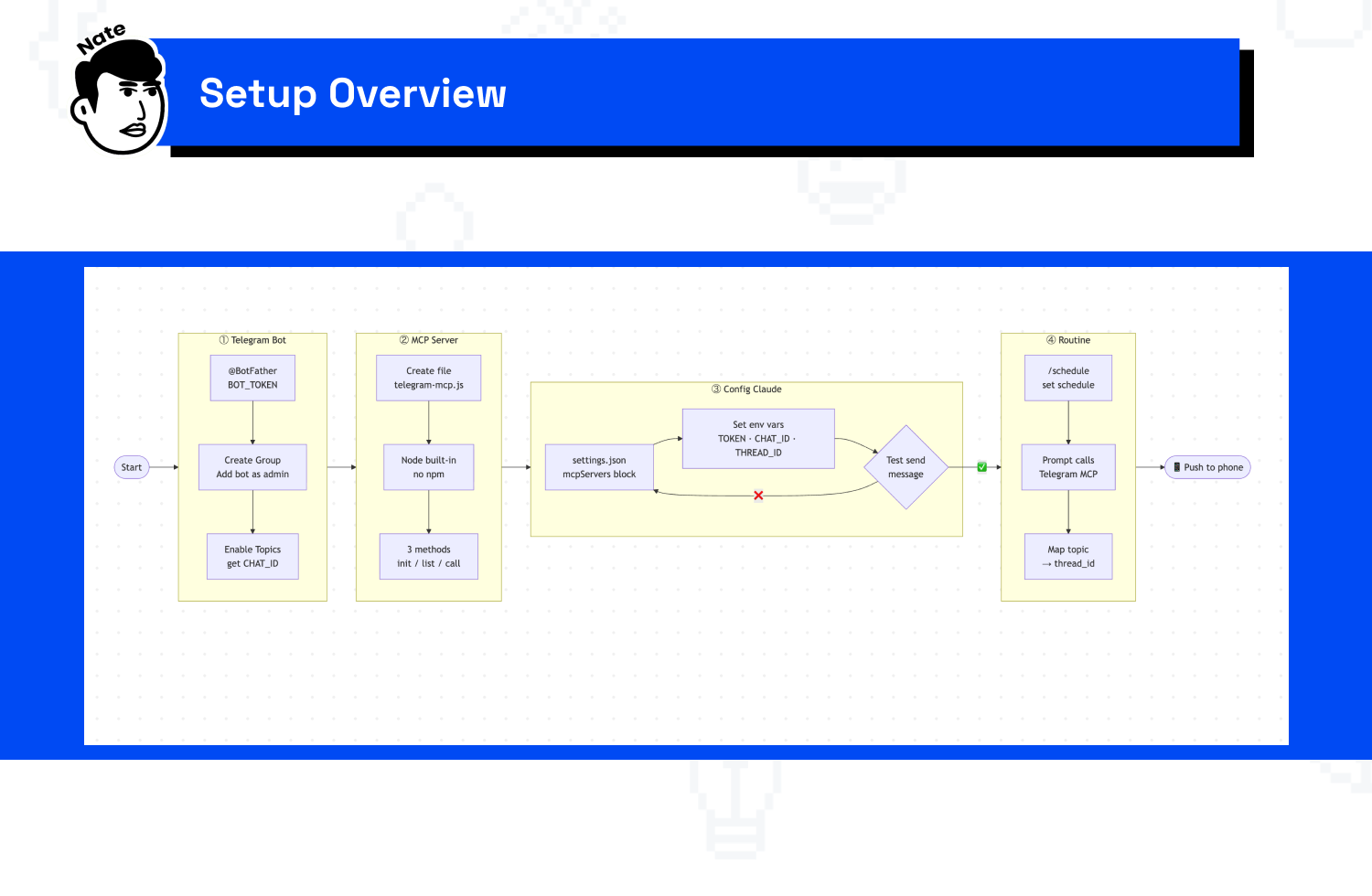
flowchart LR
    START([Start]) --> S1

    subgraph S1["① Telegram Bot"]
        direction TB
        a1["@BotFather\nBOT_TOKEN"] --> a2["Create Group\nAdd bot as admin"] --> a3["Enable Topics\nget CHAT_ID"]
    end

    subgraph S2["② MCP Server"]
        direction TB
        b1["Create file\ntelegram-mcp.js"] --> b2["Node built-in\nno npm"] --> b3["3 methods\ninit / list / call"]
    end

    subgraph S3["③ Config Claude"]
        direction TB
        c1["settings.json\nmcpServers block"] --> c2["Set env vars\nTOKEN · CHAT_ID · THREAD_ID"] --> c3{Test send\nmessage}
    end

    subgraph S4["④ Routine"]
        direction TB
        d1["/schedule\nset schedule"] --> d2["Prompt calls\nTelegram MCP"] --> d3["Map topic\n→ thread_id"]
    end

    S1 --> S2 --> S3
    c3 -->|✅| S4
    c3 -->|❌| c1
    S4 --> END([📱 Push to phone])
Step 1 - Create a Telegram Bot
Open Telegram, chat with @BotFather, send /newbot, name your bot, and receive your BOT_TOKEN. Next, create a new Telegram group, add the bot as admin, and enable Topics in the group Settings (also called Forum Mode). To get the CHAT_ID, call the endpoint https://api.telegram.org/bot{TOKEN}/getUpdates after sending a message to the group - the group ID will appear in the response as a negative number like -1001234567890.

Step 2 - Create the MCP Server
Create a file at ~/.claude/mcp-servers/telegram-mcp.js. This server runs on Node.js built-ins (https, fs, path) - no additional installs needed. Basic structure: read stdin with Content-Length header as JSON-RPC over stdio, handle three methods - initialize, tools/list, and tools/call. If you want a ready-made template, paste this article’s link into Claude and ask “create a telegram-mcp.js file following this guide” - done.
Step 3 - Register in Claude settings
Open ~/.claude/settings.json, add to the mcpServers block:
"telegram": {
  "command": "/path/to/node",
  "args": ["/Users/you/.claude/mcp-servers/telegram-mcp.js"],
  "env": {
    "TELEGRAM_BOT_TOKEN": "your-bot-token",
    "TELEGRAM_CHAT_ID": "-100xxxxxxxxxx",
    "TELEGRAM_THREAD_ID": "your-thread-id"
  }
}
Restart Claude Code, try typing “send a test message to Telegram” - if the bot delivers it, setup is successful. This whole process took me about 20 minutes the first time; much faster on any subsequent machine.
Organizing Telegram Topics by report type
This is the part that makes the setup truly valuable. A Telegram group with Topics is like a mini Slack workspace - each topic is its own channel, and you route reports to the right channel using thread_id. When Claude sends a report, it passes the corresponding thread_id in the tool call to land the message in the right place.
How I’m currently organizing it:
| Topic | thread_id | Used for |
|---|---|---|
| Report | 31 | GA4 weekly, SEO summary, PageSpeed |
| Project A | 12 | Website updates, content alerts |
| Project B | 24 | Project-specific reports |
| Inbox | (none) | Tests, general messages |
To avoid memorizing thread_id every time I give a command, I map topic names to IDs in the project’s CLAUDE.md. After that, just saying “send to the Report topic” is enough for Claude to know the right thread_id automatically. One thing I like compared to email or Notion notifications: Telegram pushes to your phone instantly, no need to open another app.

Use cases I’m running right now
After two weeks with this setup, here are the tasks running stably. GA4 weekly summary runs every Monday morning - Claude pulls data from Google Analytics via MCP, summarizes last week’s traffic, highlights pages with significant changes, and sends it to the Report topic. I read it over morning coffee without opening the Analytics dashboard once.
PageSpeed alerts are the use case I find most valuable after each website deploy. Claude checks key pages - if any score drops below baseline it sends an alert to Telegram immediately, if everything’s fine it sends a brief confirmation. I used to forget to check after deploying; now I don’t need to remember. Plus for research tasks I assign Claude to run overnight - reading multiple sources, synthesizing - I wake up to a summary already in Telegram instead of having to open the terminal to find output.
This setup doesn’t replace working directly with Claude. But for tasks that repeat, run on a fixed schedule, or need to run while you’re away - it saves a lot of context switching and breaks the habit of “going to check if Claude finished yet.”
Want to apply a similar setup?
The fastest way: copy this article’s link, paste it into Claude Code, and say “I want to set up something similar, guide me step by step following this article.” Claude will read the context, ask for details about your environment (Node.js path, Telegram bot token…), and create the MCP server file and config directly. No need to read and adjust manually.
If you already have a Telegram bot, or are using a different group, just mention that and Claude will adjust the config accordingly. This setup works with any Claude subscription that includes Claude Code - the only addition needed is a free Telegram bot and 15-20 minutes upfront.
What tasks are you automating with Claude? I’m curious to hear how people are using scheduled tasks - reply or reach out on LinkedIn.
Thanks for reading NateCue Insights!